Control Your Live Production From Anywhere
Transform your iPad and iPhone into a powerful control surface for OBS Studio. Manage scenes, audio, streaming, and more.
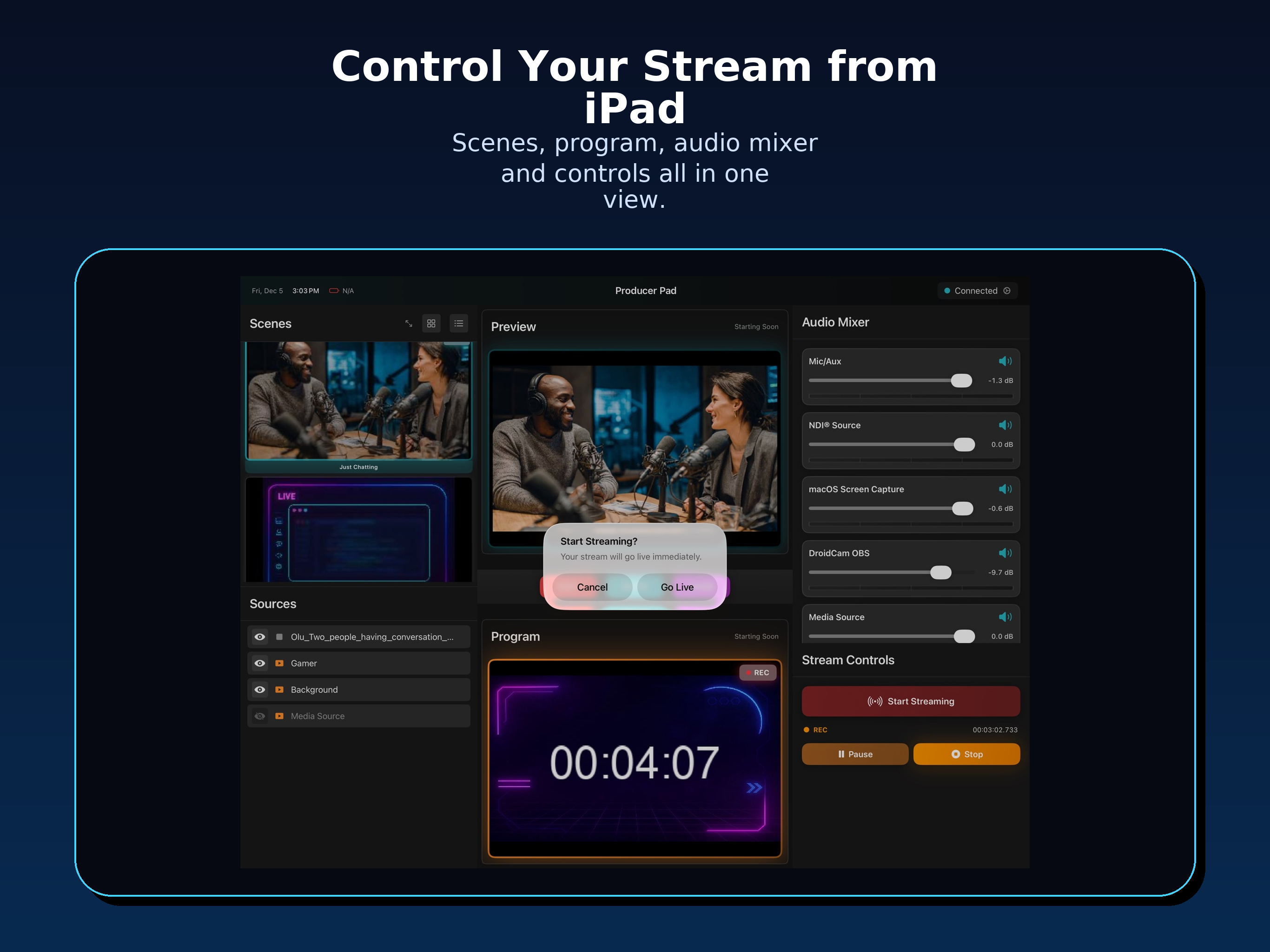
Everything You Need
Professional production control in your pocket
Complete Scene Control
Switch between scenes instantly. Preview changes before going live with Studio Mode.
Professional Audio Mixing
Control volume levels with real-time VU meters. One-tap mute/unmute for all sources.
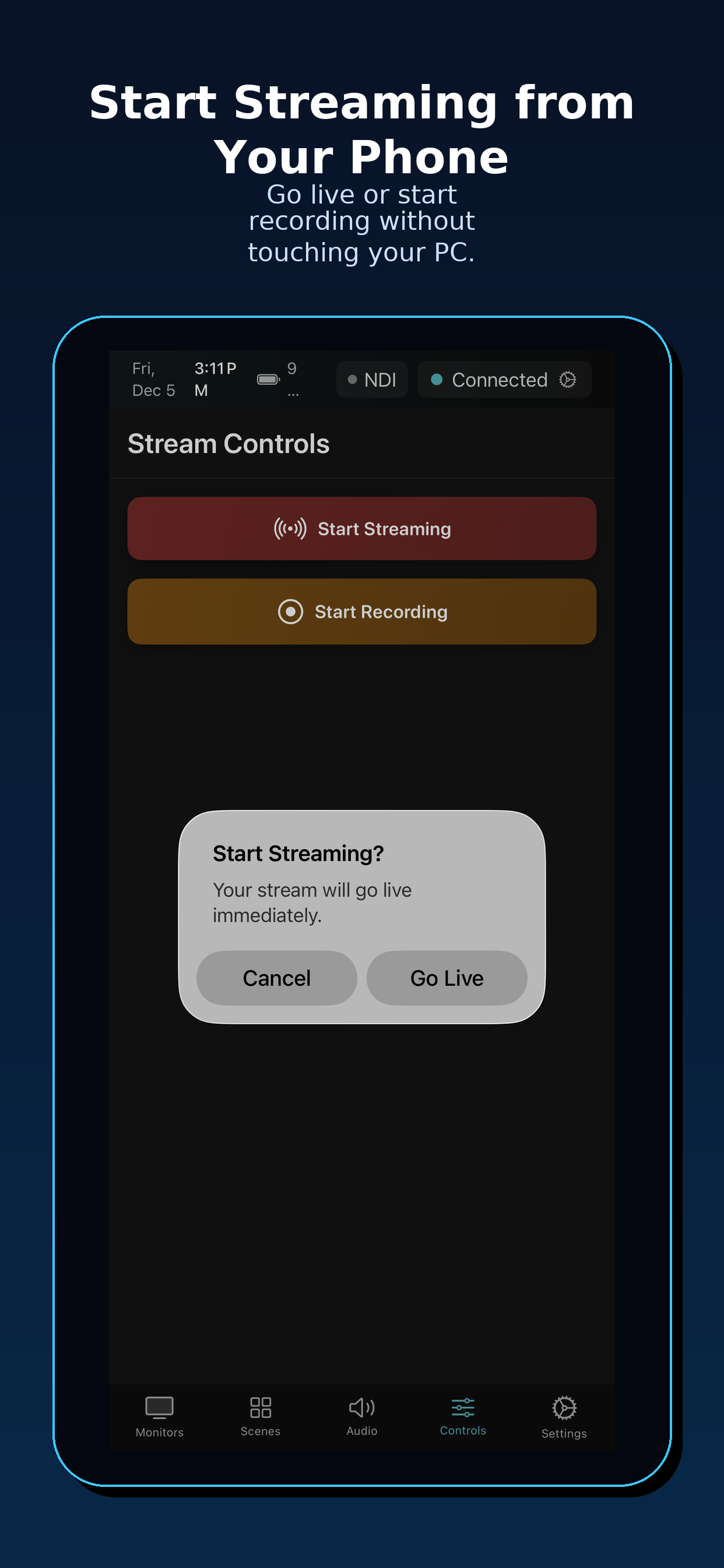
Stream & Record Control
Start/stop streaming and recording with live status indicators and connection monitoring.
NDI Video Monitoring
High-quality, low-latency video feeds from OBS. Monitor Program and Preview outputs.
Quick Text Editing
Edit text sources directly from the app. Perfect for lower thirds and captions.
Easy QR Connection
Scan QR code for instant setup. Save multiple OBS profiles and switch with one tap.
Works on iPad & iPhone
Optimized layouts for every device and orientation
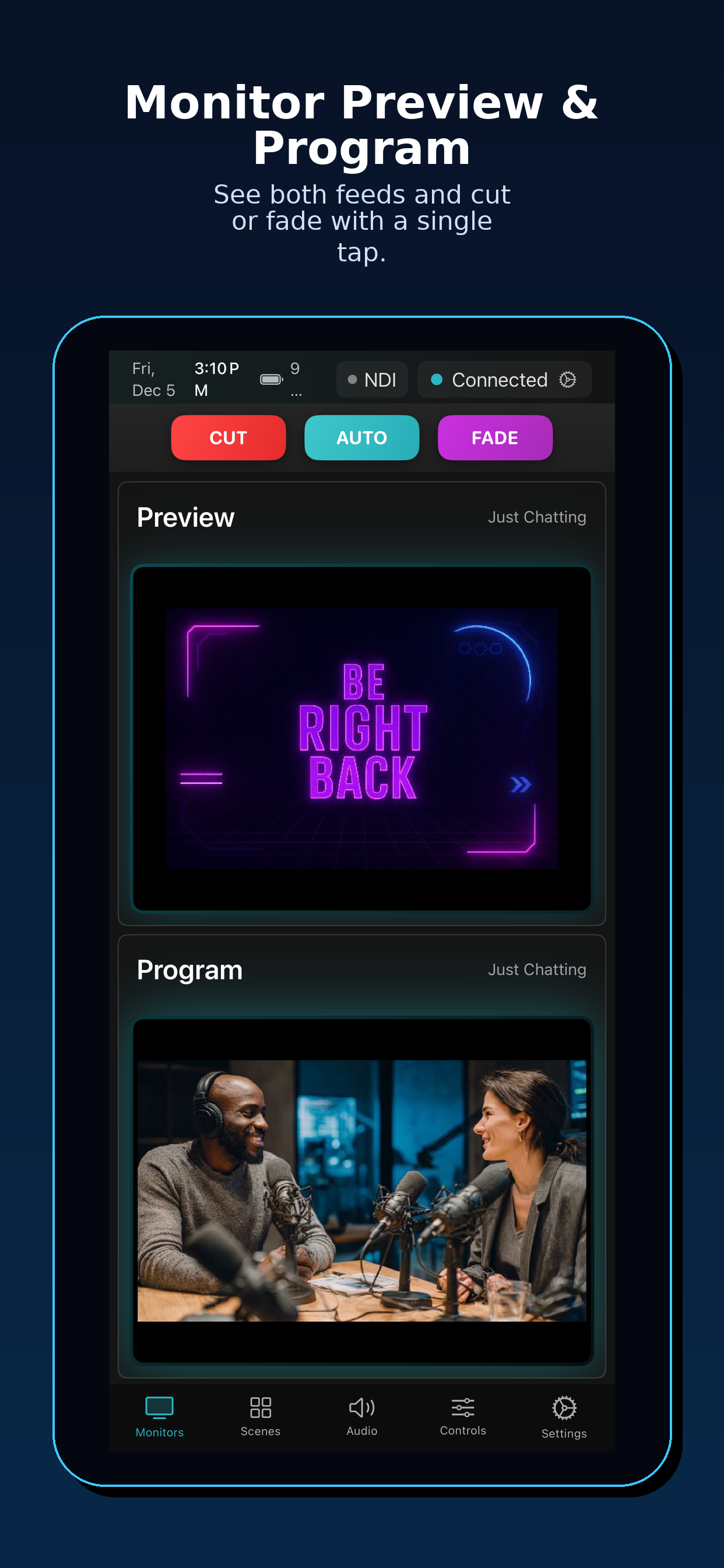
Monitors
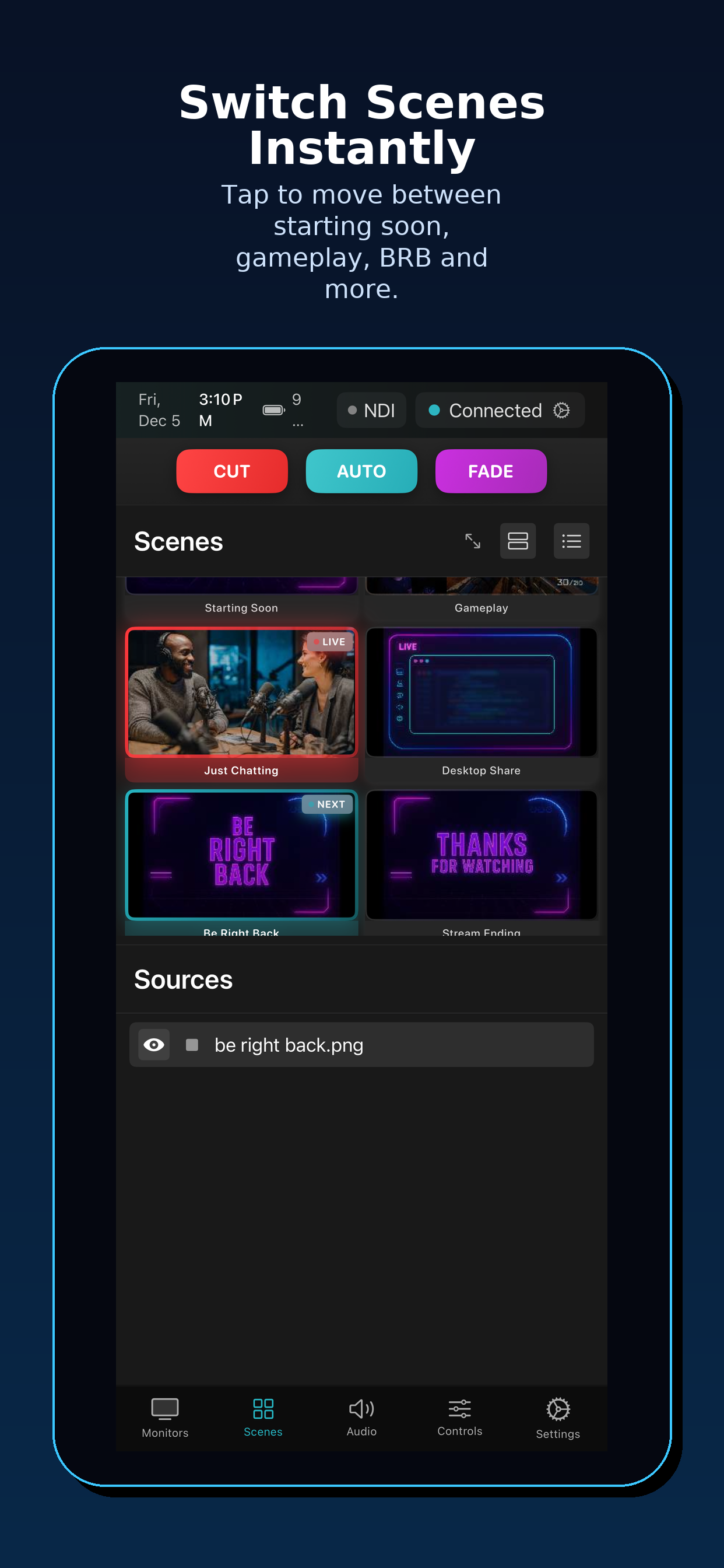
Scenes
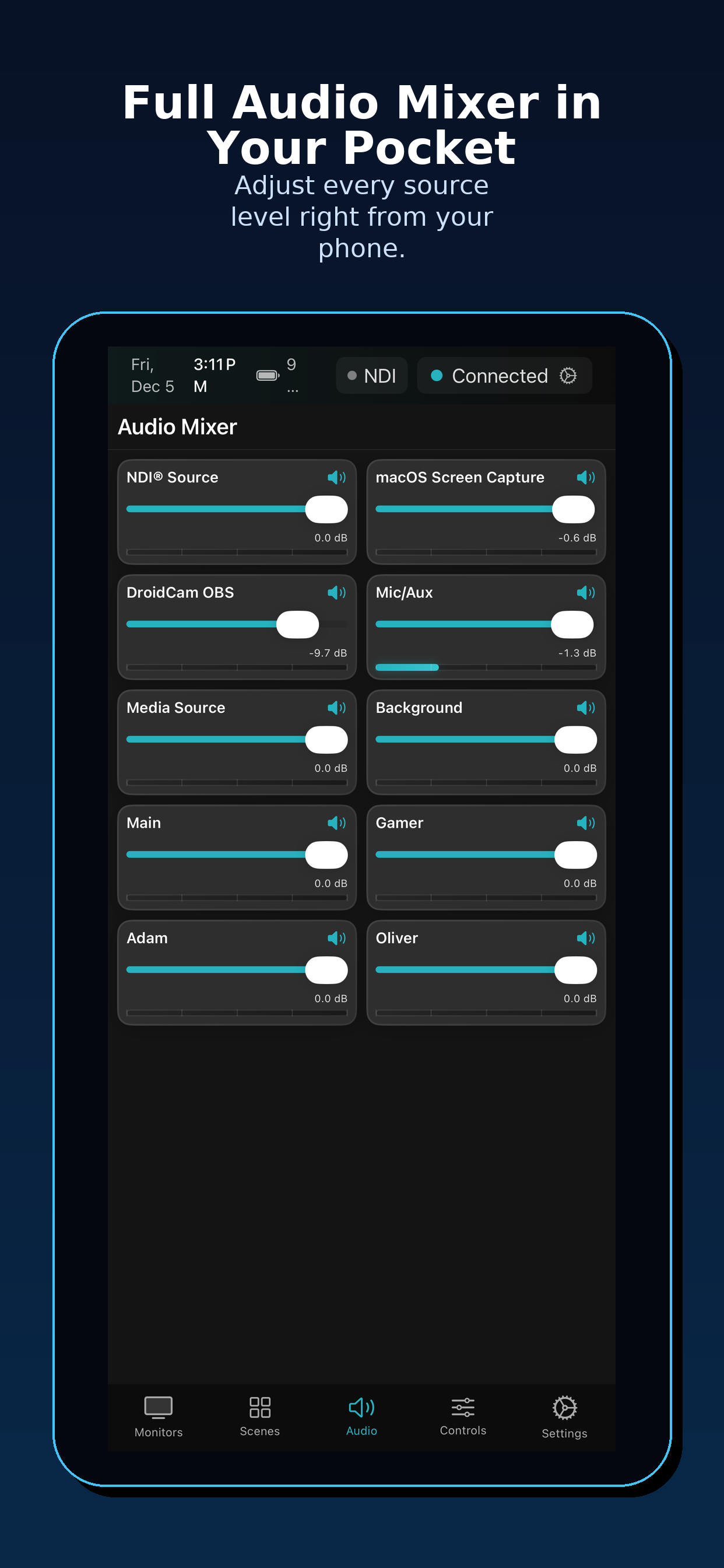
Audio
Controls

iPad: Full production control with Studio Mode
Simple Pricing
Start with a 14-day free trial
Monthly
Flexible monthly billing
- ✓ All Pro features
- ✓ Unlimited profiles
- ✓ NDI monitoring
- ✓ 14-day free trial
Annual
Save 58% — just $0.83/month
- ✓ All Pro features
- ✓ Unlimited profiles
- ✓ NDI monitoring
- ✓ 14-day free trial
Lifetime
Pay once, own forever
- ✓ All Pro features
- ✓ Unlimited profiles
- ✓ NDI monitoring
- ✓ No subscription
Questions?
Does this work with OBS Studio?
Yes! Producer Pad is designed specifically for OBS Studio and uses the built-in WebSocket server (OBS 28+).
Do I need to be on the same network?
Yes, your iPad/iPhone and OBS computer need to be on the same local network (Wi-Fi recommended).
What about video monitoring?
Video monitoring uses NDI. You'll need the OBS NDI plugin installed and configured.
Can I control multiple OBS instances?
Yes! Save multiple connection profiles and switch between them instantly.
Get Started in Minutes
Three simple steps to control OBS from your device
Enable WebSocket
In OBS, go to Tools → WebSocket Server Settings and enable the server.
Download the App
Get Producer Pad from the App Store on your iPad or iPhone.
Scan & Connect
Scan the QR code from OBS or enter your connection details manually.
Ready to Take Control?
Download Producer Pad and start your 14-day free trial today.
Download on App Store